Students in grades K-4 use a Clever Badge (a printed piece of paper with a QR code) to sign into their Chromebooks and access online resources.
Teachers and certain staff have the ability to print their student's Clever Badges through Clever.
Who you can see will depend on the students classroom assignment in PowerSchool. If you do not see a student in your Clever classroom, you will need to check with your school to ensure that the student in enrolled correctly in PowerSchool.
To update a student’s password:
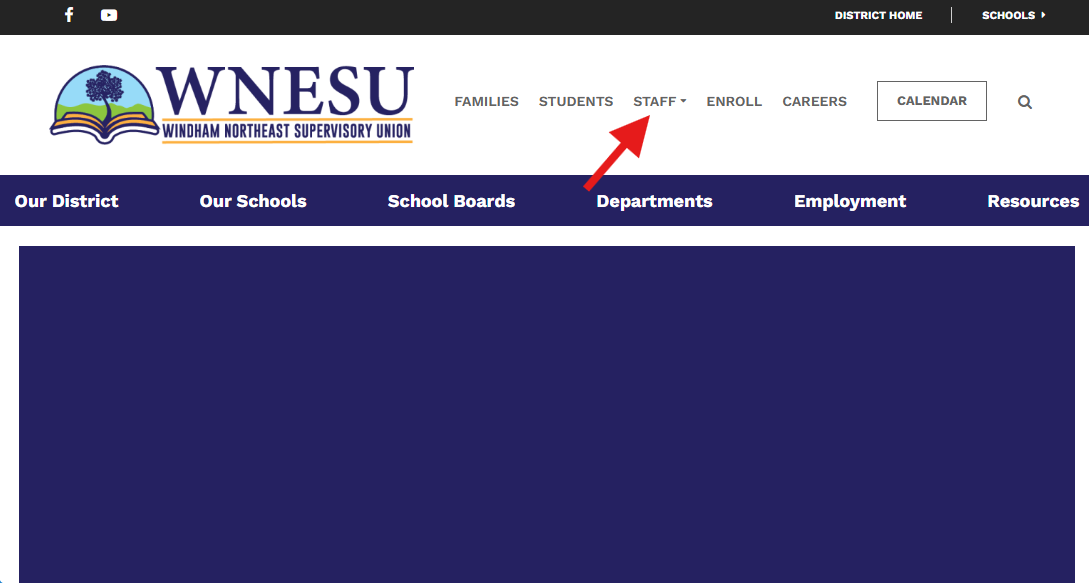
Visit your school or the district homepage.
- Click STAFF tab at the top of the page.
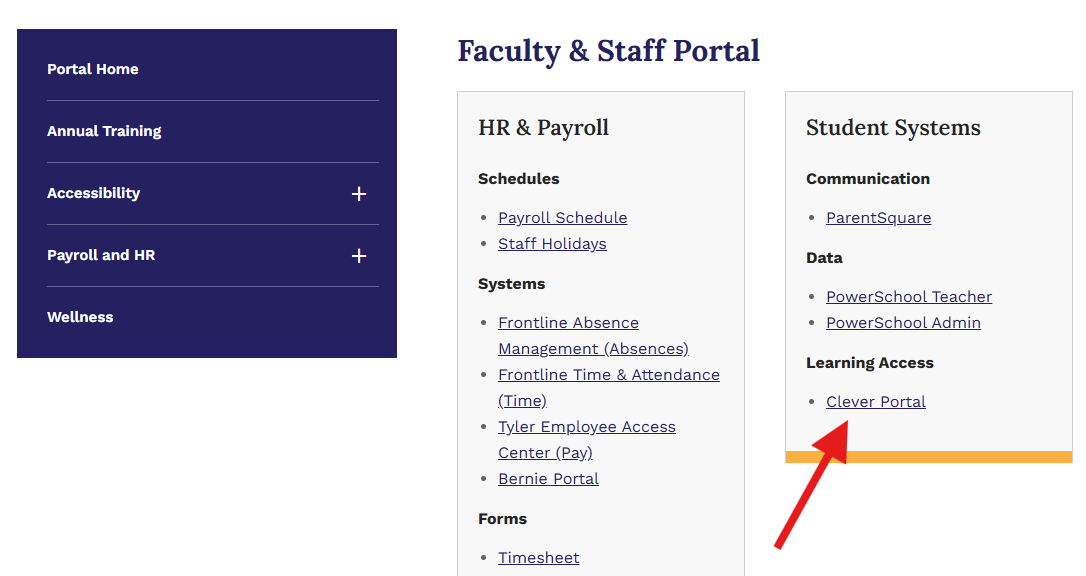
- Click Clever Portal under Student Systems > Learning Access
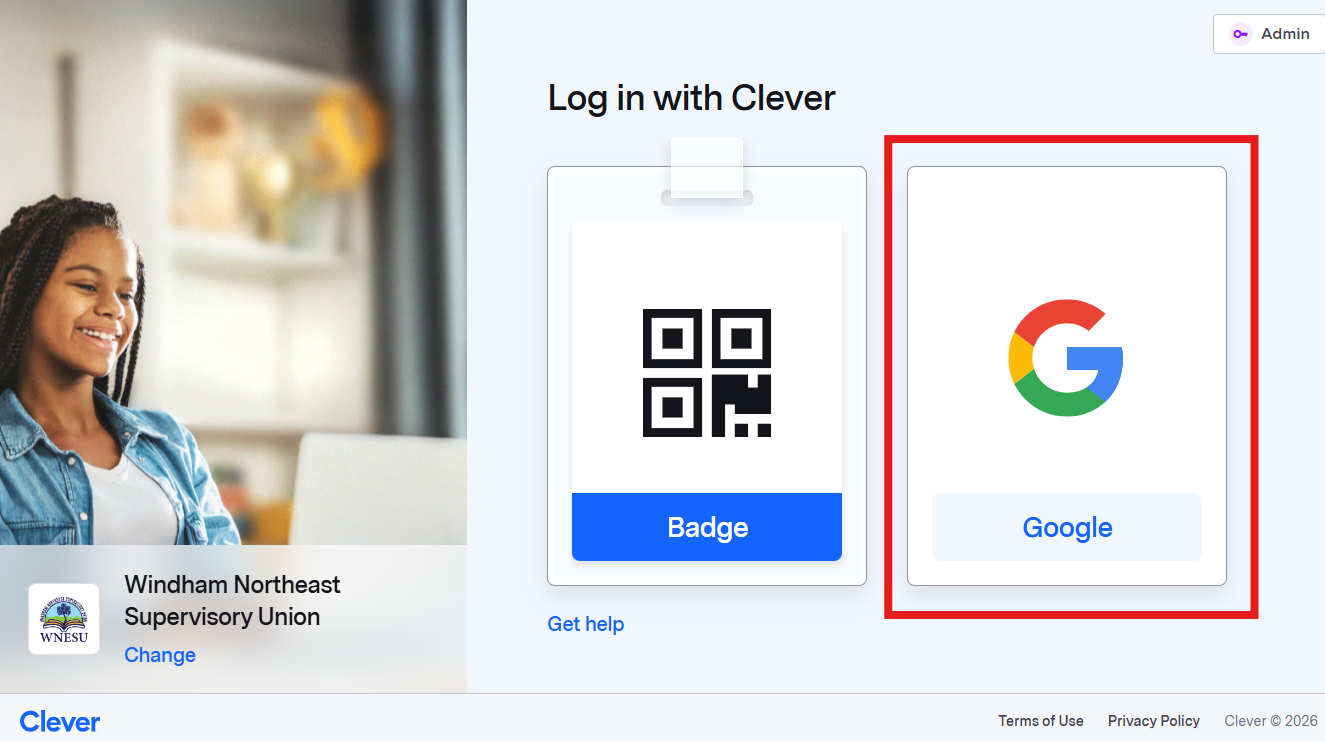
- Log into Clever with your Google Account
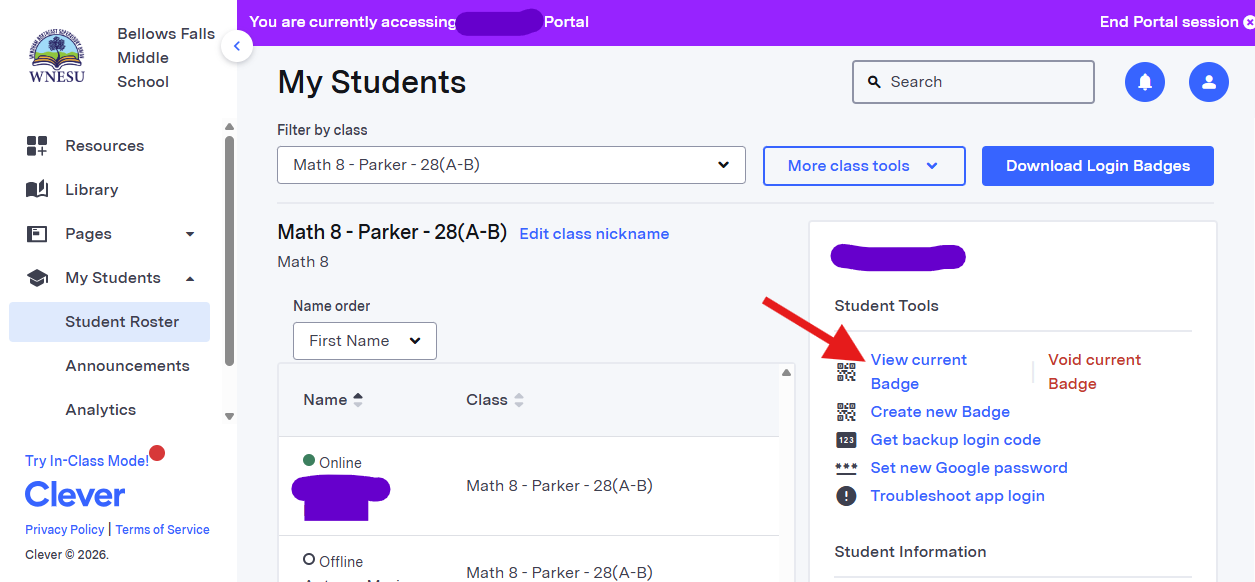
- On the left, Navigate to My Students > Student Roster
- From here, you can either download ALL student's Clever Badges:
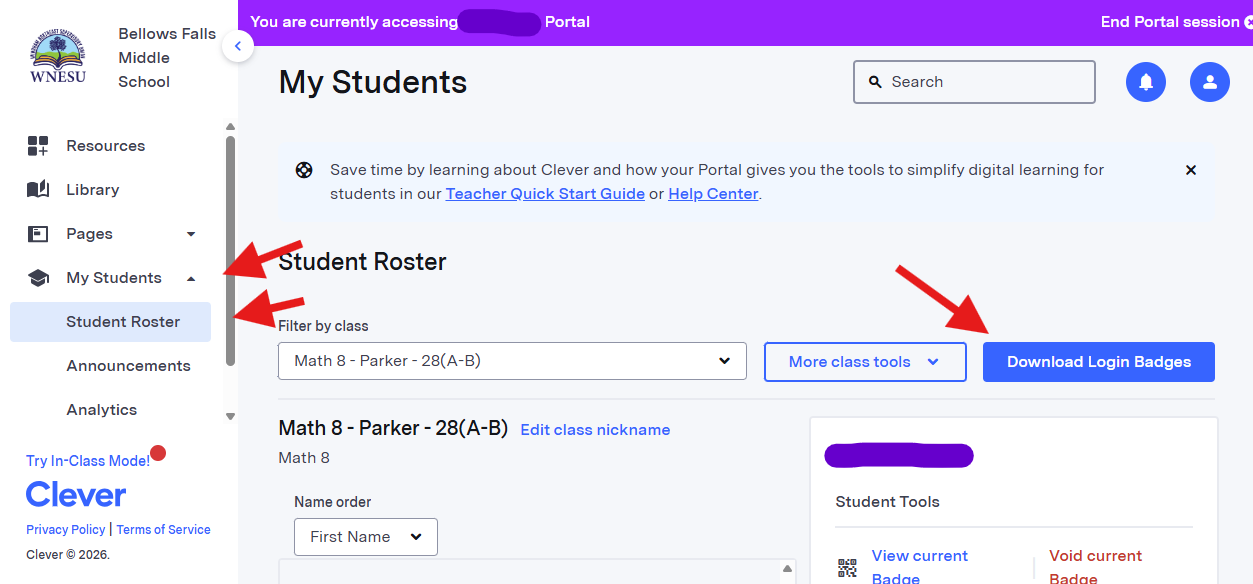
- OR you can select individual student's and download their individual Clever Badge:
Was this article helpful?
That’s Great!
Thank you for your feedback
Sorry! We couldn't be helpful
Thank you for your feedback
Feedback sent
We appreciate your effort and will try to fix the article