Teachers and certain staff have the ability to reset their student's Google Account password through Clever.
Who you can see will depend on the students classroom assignment in PowerSchool. If you do not see a student on your Clever classroom, you will need to check with your school to ensure that the student in enrolled correctly in PowerSchool.
To update a student’s password:
Visit your school or the district homepage.
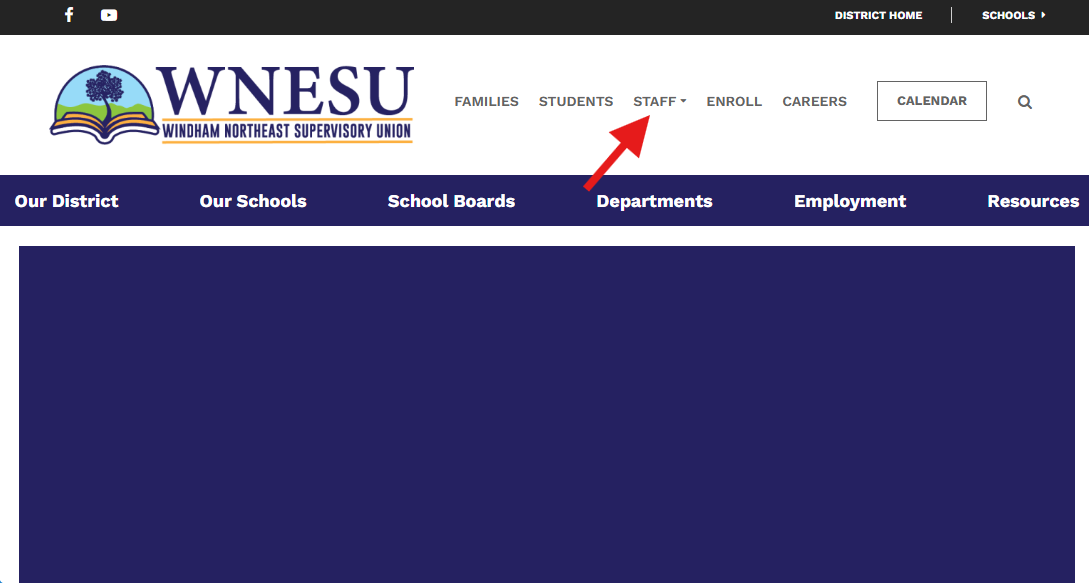
- Click STAFF tab at the top of the page.
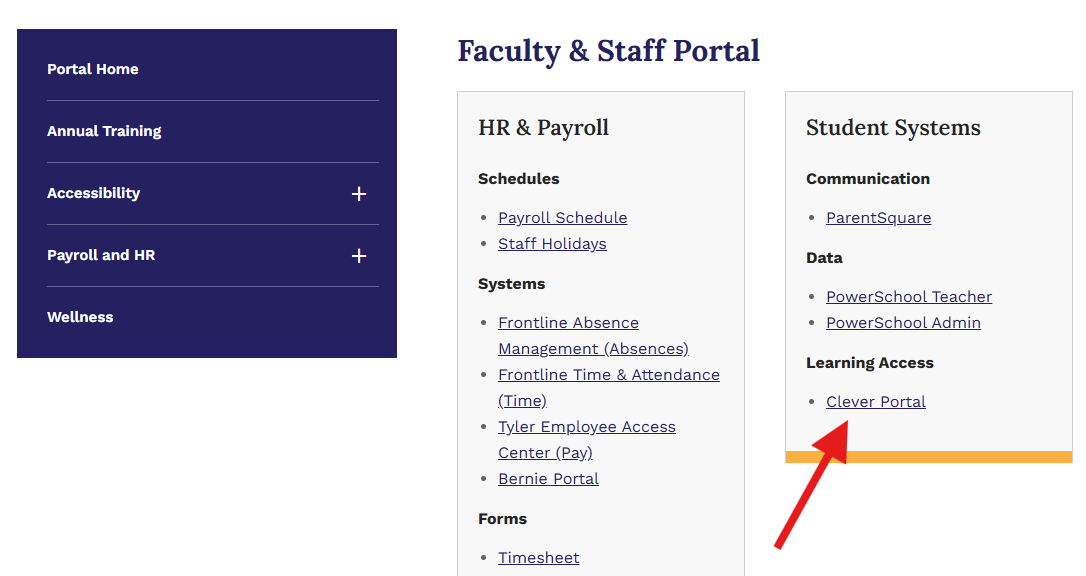
- Click Clever Portal under Student Systems > Learning Access
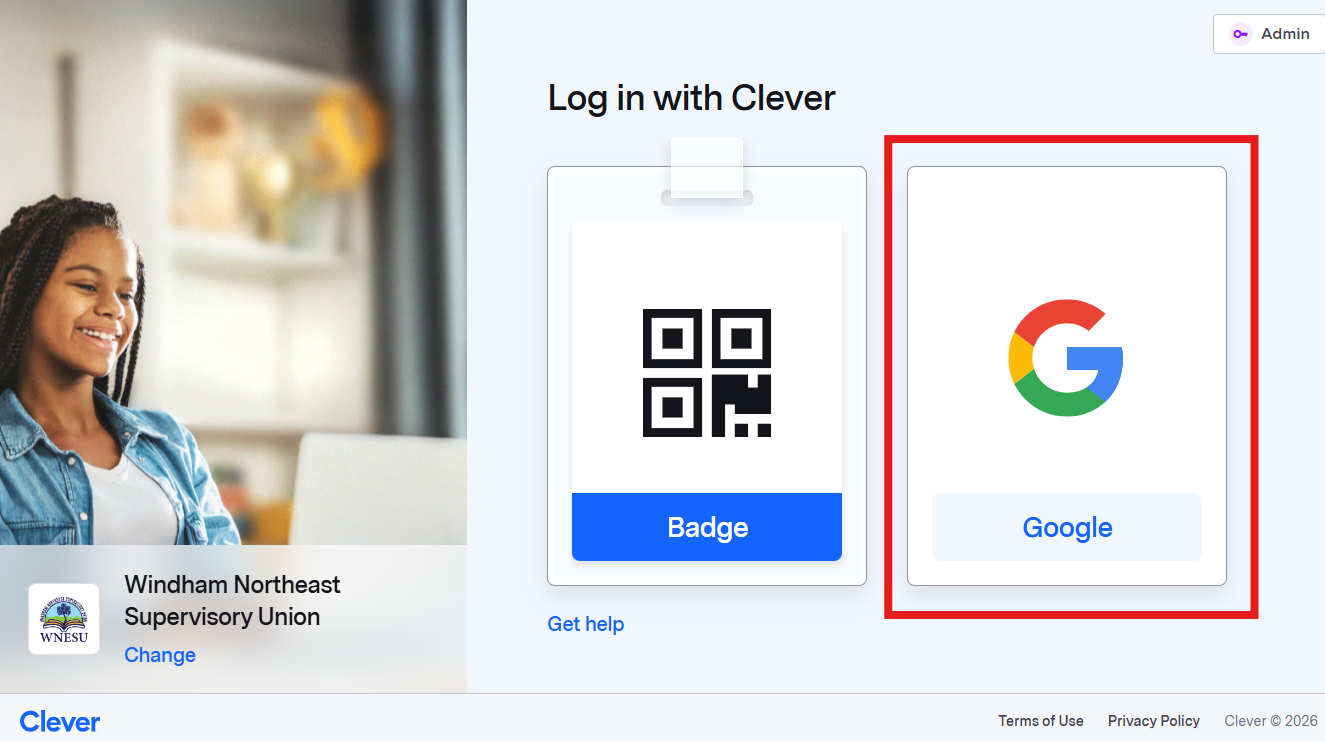
- Log into Clever with your Google Account
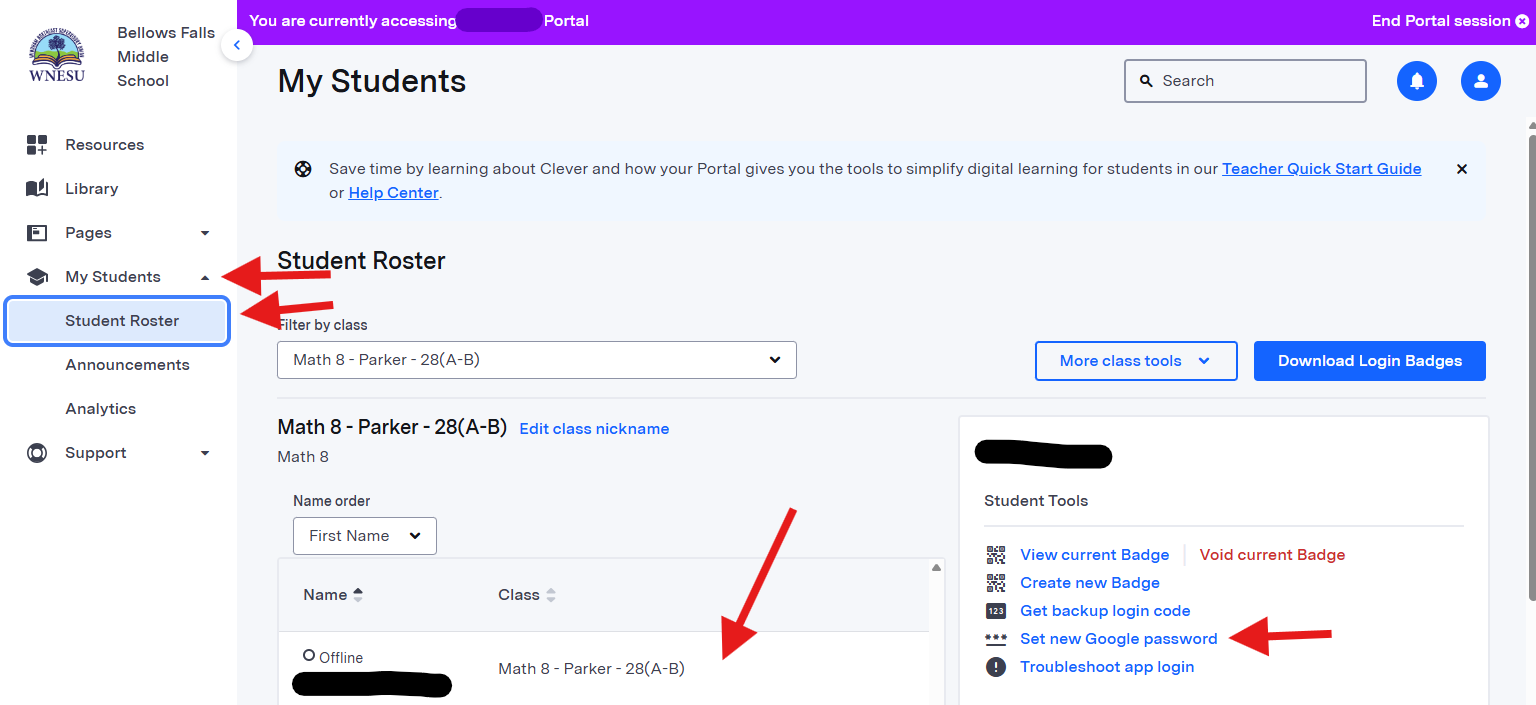
- On the left, Navigate to My Students > Student Roster
- Adjust the filters, find, and click the student you'd like to reset
- On the right, under Student Tools, click Set new Google password
Once updated, your student should be able to log in successfully with the new password you've created.
Was this article helpful?
That’s Great!
Thank you for your feedback
Sorry! We couldn't be helpful
Thank you for your feedback
Feedback sent
We appreciate your effort and will try to fix the article